Getting Started
This page covers starting llamatron, how every screen is laid out, the keys that work everywhere, the main screen, opening and saving, and building a first song step by step. The page assumes llamatron is installed, as Installing describes.
Starting llamatron
llamatron                                   # a new set with one song, called untitled, playing a starter pattern
llamatron examples/learning/08_tie.yml         # open a set file
Start llamatron from the project folder for now. The Open page starts in examples/ when the current folder has one, and new sets are saved into songs/ there. Exports are written beside the set's file, wherever that is.
A file holds a set of songs, like the songs of one concert. The patterns, scales, generators, chains, grooves and instruments belong to the set, and every song shares them; each song has its own tempo, scale, seed, groove, tracks, registers and scenes.
A video of moving around the tracker is on YouTube. The video was made with an early build, so some pages look different now, and the program will go on changing.
Screen Layout
Every screen is laid out the same way, from top to bottom:
- The header: where you are at the left, the crumbs, such as
PATTERNS › leadorGENERATORS › my arp › OFFSETS, andMAIN SCREENon the main screen;llamatronin the middle; and at the right the open set, such asset: first.yml, orset: (unsaved)before the set has been saved, with the save mark beside it:● unsavedfor a set that has no file yet,● unsaved changesfor a set changed since it was saved or opened, and○ savedotherwise. Under the set is the current song, with how long the song, scene, clip or pattern on the page lasts. The version is in the About dialog,F3. - The page: a triangle,
▶, marks the row the cursor is on, and the arrow keys move it, so you never need to know a key to get around:ENTERopens or edits what is marked. Grids mark the selected cell differently: the pattern editor in reverse video, the piano roll by shading the note under the cursor, Arrange with a double-lined box, and the main screen with a box around the selected cell alone. Keys and buttons, the things that act, are shown in reverse video. - The status line: one dim line saying what the last key did when that isn't obvious, such as where a save or an export went, what an undo undid or why a key did nothing. The next key press clears it.
- The legend: the page's own keys, each as a reversed label, changing with what is under the cursor. The keys that work on every page aren't repeated there;
F1lists them with the page's own.
Global Keys
| Key | What it does |
|---|---|
Ctrl+S | Saves the set. |
Ctrl+O | Opens another set, and comes back to the page you were on. |
Ctrl+X | Exports the current song, as Exporting describes. |
Ctrl+T | The emergency stop for real-time playback: stops whatever plays and sends note offs, all notes off and all sound off on every channel the set's instruments use, on every connected device, whether or not anything is known to be playing. The status line says what was silenced. |
Ctrl+Z, Ctrl+Y | Undo and redo. Only changes to the set count, never moving around: typing into a cell is one change until the cursor moves, a munge is one change, and the notes count when their Save button is pressed. If an undo renames the thing a page shows, the page stays and shows it under its other name; if an undo takes the thing away, the tracker goes back to the page it was opened from and says so. |
F1 | Every key that works on the page, the keys that work everywhere above the page's own; Tab turns to a panel saying what the page is for. Keys left off the legend to keep it short, such as Home, End and /, are listed here. |
Ctrl+C | Quits at once, from any page or dialog, without asking about unsaved changes, and closes FluidSynth and the MIDI connections as quitting does. |
F2 | Renames what the page shows or what the cursor is on, as N does. |
F3 | About llamatron: its version, when it was built, where it lives and its license. |
On a Mac, F1, F2 and F3 are Fn+F1, Fn+F2 and Fn+F3 unless System Settings sets the function keys as standard keys.
Keyboard Control
These hold on every page:
ESCgoes back one page at a time and never quits; in a dialog it cancels. Every legend starts with it, then the arrows, then the keys that are always there, then the rest.Qquits, from the main screen only. With unsaved changes it asks first, andENTERquits without saving.- A cursor stops at the edges: holding an arrow down takes you to the end and no further.
[(dec) and](inc) step any value: a number down and up, a cycle of choices back and forward, a gate shorter and longer, and on the piano roll they shrink and stretch the note under the cursor.-,+and=do the same, off the legend, and so do Left and Right on a settings page.- Anything that is on or off answers to
SpaceandENTERalike, shown as one key,Space/ENTER. A row with a short cycle of choices, such as Dot or Register +Note, goes to the next choice on either too. - Upper and lower case are the same key, and so are
BkspandDelete. - Nothing is saved or exported until you ask.
Lists. Up and Down select. A list you can add to has a + row at the bottom, where ENTER adds, as A does. / searches the list as you type: the rows shrink to those containing the text, Tab completes, ENTER keeps your place and ESC returns to the whole list. Deleting something still in use is refused, with a list of what uses it; otherwise it asks first. Every list you pick from is sorted by name, while the pages keep the file's order until S sorts them for good.
Settings pages. Up and Down select a setting, [ and ] change it, ENTER types a value or opens a list to choose from, and Bksp clears it where that makes sense. A page with many settings groups some into sections: a heading reads + Density while closed and - Density while open, Space or ENTER toggles it, and PgUp and PgDn jump between headings. Sections start closed and stay as you leave them, by name, for as long as the tracker runs. A closed heading says (set) when anything inside holds a value, so a section never hides a setting silently.
Dialogs. In a list, ENTER chooses, ESC cancels, typing searches and Tab completes. In a text prompt, Left and Right move the cursor, Bksp erases before it, ENTER finishes and ESC cancels; the cursor starts at the end. In a question, YES and NO are buttons that Left and Right move between, ENTER presses the marked one, Y and N answer at once, and ESC means no.
Main Screen
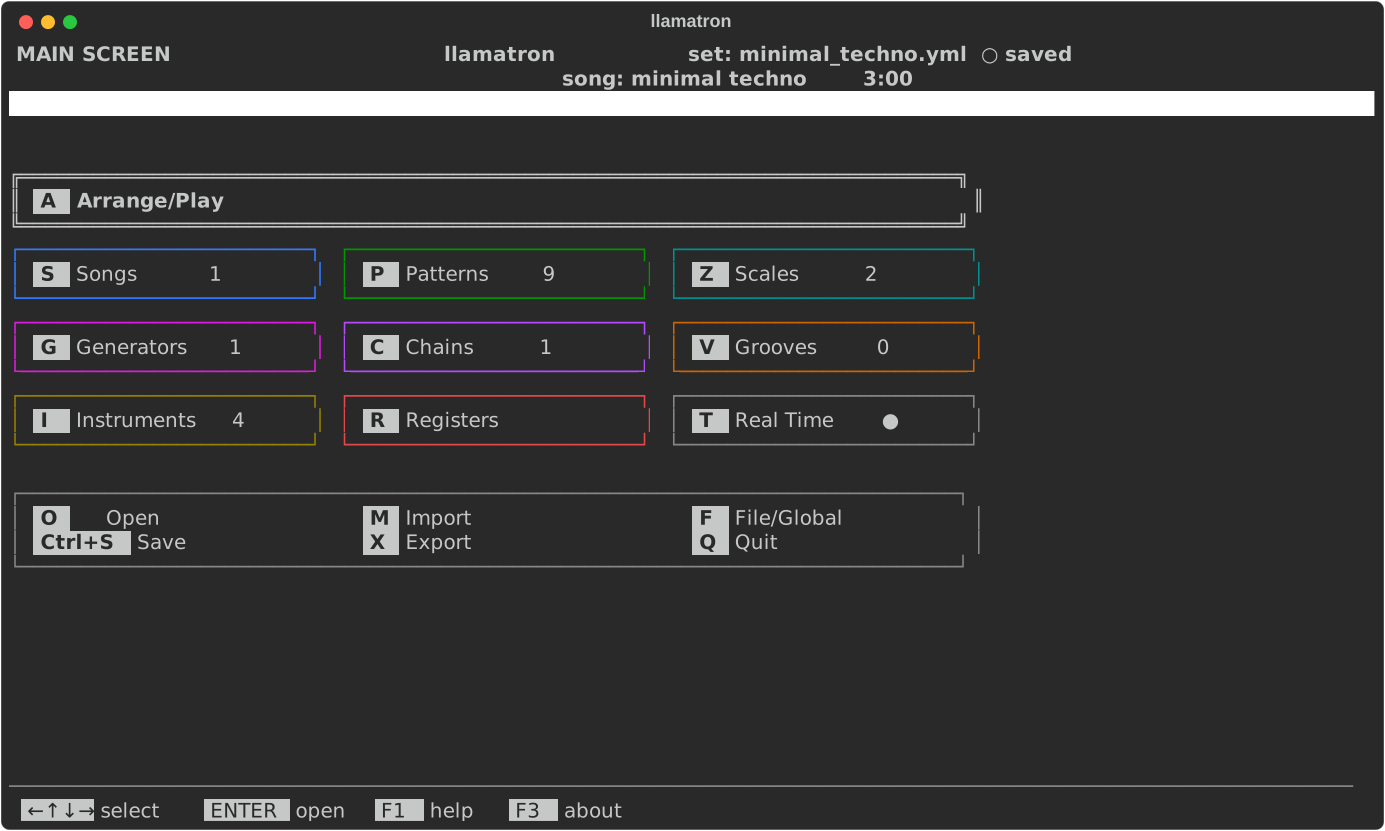
The main screen is one block of buttons, the same size in every window. Arrange is the bar across the top. Under it are three rows of three: Songs, Patterns and Scales; Generators, Chains and Grooves; Instruments, Registers and the Real Time switch. A bar under the buttons holds Open, Save, Import, Export, File/Global and Quit. While a song plays, the header shows a play mark and a clock beside the song's length. Press a cell's letter, or move the box with the arrows and press ENTER; the arrows move to the cell beside, above or below. A cell whose page is a list counts what the set holds there. The box stays where it was when you come back with ESC.
| Key | Page | What it is for |
|---|---|---|
F | File/Global | The set's title, author, description, notes and defaults, with New and Save As |
S | Songs | The songs in the set, and which one is current |
P | Patterns | The notes, in a grid of steps, shared by every song |
C | Chains | Lists of generators that clips, scenes and tracks run |
G | Generators | Every kind of generator |
Z | Scales | The named scales that songs, scenes and clips use |
V | Grooves | Swing and other timing feels |
I | Instruments | The MIDI devices and channels, or FluidSynth, that tracks play through in real time |
R | Registers | AX to DX, four numbers that pattern steps change and use, in the current song |
A | Arrange | The scenes, tracks and clips of the current song. The cell reads Arrange/Play while Real Time is on, since Arrange then plays the song too |
T | Real Time | A switch, not a page: ● when the set plays through its instruments in real time, ○ when not |
O, X, M | Open, Export, Import | On this screen alone, without Ctrl |
Q | Quit | Asks first only when there are unsaved changes |
Registers and Arrange edit the current song, which the Songs page picks. Patterns, Chains, Generators, Scales, Grooves and Instruments belong to the set, so a change there is seen by every song.
Screen Map
Every screen opens from the main screen, and ESC goes back up the map one step at a time. The Open page opens with Ctrl+O from every page, so it is drawn from the main screen. The label on an arrow is the key that opens the screen; an arrow with no label is a screen opened from a list, with ENTER on an item, or in more than one way. The map is generated from the code by internal_tools/make_diagrams.py.
Opening and Saving
Ctrl+Ssaves the set. The first time, it asks for a file name, starting fromsongs/untitled.yml, and adds.ymlif you leave it off; folders are made as needed. A protected set, such as a demo, is never written over: a dialog offers to save a copy under another name, which isn't protected. The File/Global page's Protected setting turns the protection off. Saving writes nothing when the file already holds exactly what it would save, and asks before writing over a file something else has changed since it was opened.Wsaves as a new name, on the File/Global page, asking before replacing another file.Ctrl+Oopens a set file. The Open page starts inexamples/, where folders show with a trailing slash, such aslearning/:ENTERopens a file or goes into a folder, and../goes up. Opened again, the page comes back to the folder it last showed, until llamatron is closed. A file that holds values llamatron can't use, such as a velocity of 200 typed in by hand, opens only after a dialog lists each with the value that takes its place: the nearest number allowed, the longest length allowed, or the default.YESopens the set with those changes, marked unsaved, and the file stays as it is until you save;Noopens nothing. Anything else wrong with a file, such as a clip that names a missing pattern, is refused with a message saying where.Nstarts a new set, on the File/Global page, with one song calleduntitledwhose first track plays a starter pattern.Ctrl+Xexports the current song, as Exporting describes, andMimports a MIDI file as a new song, as Importing describes.
Opening, starting a new set and quitting ask first when there are unsaved changes.
First Song
This section builds a short song with a melody and a kick drum. A clip needs its pattern and its track to exist first, so the order matters a little.
1. Check Song Settings
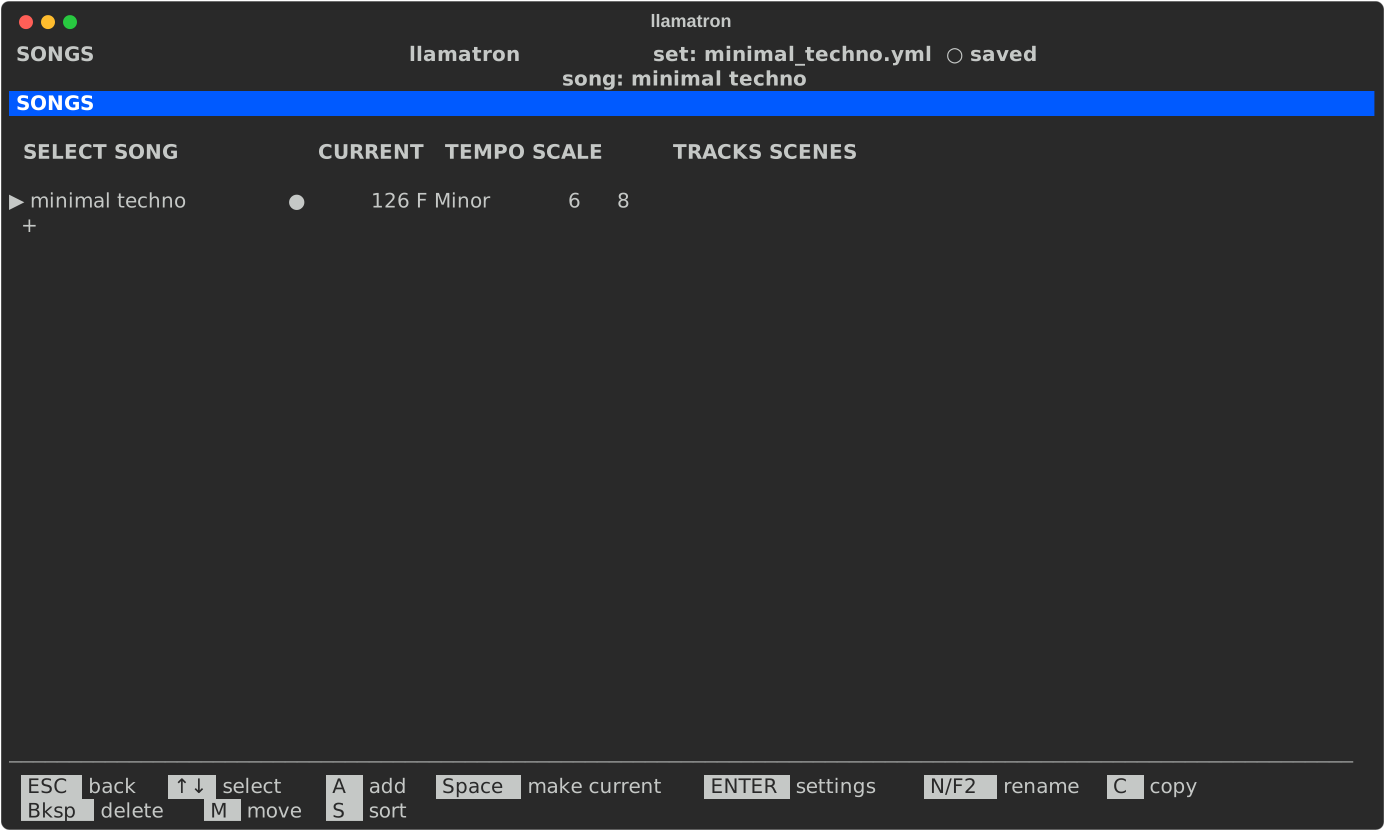
Start llamatron with no file. llamatron opens a new set with one song, untitled, which already plays: its one track, track-1, plays pattern-1, a bar of sixteenths with the scale's root on each beat, in its one scene, scene-1. Press S for Songs, which lists the set's songs and marks the current one with ●:
Press ENTER on the song to open its settings:
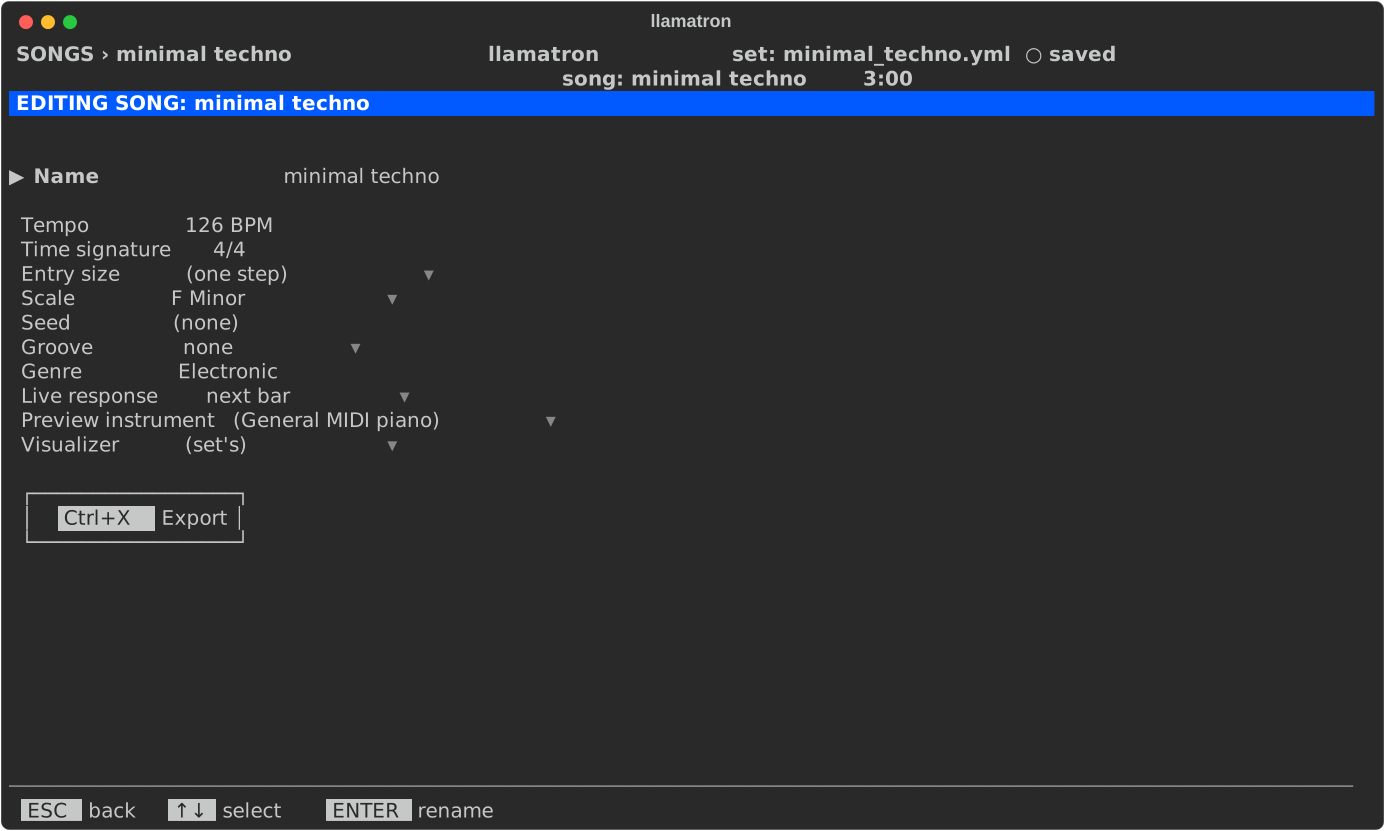
A new song is 120 BPM in C major; the pictures show a demo's song. Change the tempo with [ and ], or press ENTER and type a number. Leave the rest alone for now, and press ESC twice to go back.
2. Melody
Press P for Patterns, then A, and name the pattern lead in place of the pattern-2 it offers. The pattern editor opens on its piano roll with one bar of empty steps, 16 in 4/4, each a sixteenth note. Each row is a note of the scale, labelled down the left, such as E3 3 for the E in octave 3, the scale's third degree. The cursor starts on the root, C3, at step 1.
- Press Up twice, to
E3, and pressSpace. Press Right, then Down once toD3andSpace; Right, Down toC3andSpace; Right, Up toD3andSpace. Spaceplaces a note one step long, drawn as a bar, and never moves the cursor, so you press Right yourself. A step with no note is a rest.Bkspon a note takes it out again.
To make a note longer, press ] on it to drag its end through one more step, and [ to take a step back off, or choose how long placed notes are first with E. The line under the grid describes the note under the cursor, such as Step 1: E3 in C_major, gate 1/16. Tab shows the same notes as rows of values, where the Gate row sets lengths finer than whole steps. Patterns describes the editor in full. Press ESC to go back to the list.
3. Drum Pattern
Press A again and name this one kick. Press R and choose drum on to make it a drum pattern: the top row is now called Note, and takes note letters rather than degrees, since drums follow no scale. Type C on steps 1, 5, 9 and 13. A drum note goes in the set's default drum octave, octave 1 as Live labels it, so C is C1, MIDI note 36, the first pad of a Drum Rack. Press ESC twice to get back to the main screen.
4. Tracks
Press A for Arrange. A new song starts with one track, track-1, across the top and one scene, scene-1, down the side. Press Up onto the track's name, then ENTER, and rename it lead on the Name field. Press ESC, then move to the + after the last track's name and press ENTER to add track-2, and rename it drums the same way.
5. Scene Arrangement
Scenes are rows and tracks are columns, and a + is an empty cell where a clip can go.
- Move onto
scene-1'sleadcell and pressENTER. Chooselead; the clip page opens. - Set Repeat to 4 with
], so the melody plays four times, and pressESC. - Move onto the
drumscell, pressENTERand choosekick. Select Loop and pressSpaceto turn it on, so the kick plays for as long as the melody does. PressESC.
A scene lasts as long as its longest clip that doesn't loop, so at least one clip in every scene must not loop. The grid marks the clips: lead ×4 repeats and kick ∞ loops. To add a second section, press C on the scene's row to copy the scene below it, then change its clips. Arrange describes the page in full.
6. Saving and Exporting
Press Ctrl+S and type a name such as songs/first.yml. Press Ctrl+X and choose Ableton Live set, then open songs/first_untitled.als in Live and put an instrument on each track. To name the song something better than untitled, press S for Songs and N to rename it first.
Concepts is the next step: moving a figure through chords, shaping sections, adding randomness and performing.
The demos in examples/learning/ are numbered in the order to learn them, each teaching one feature a scene at a time; About Demos lists them in that order.